The Slide Show feature allows users to launch a slide show of all discoveries in a folder, as a Viewer. This is similar to the Slide Show option available in the App Tab Home Menu.
Only discoveries located at the root of the selected folder are included. Any items stored in sub-folders are not shown.
During the slide show:
- The content remains fully interactive.
- All queries run live against their data sources.
- Users can access right-click context menus and their full functionality.
Note: Because the slide show runs in the Viewer, users cannot save any changes made during the session. Any interactions or modifications are temporary and only visible to the current viewer; they do not affect the shared content for others.
The following tasks can be performed from the folder tree or a folder item in the Content Explorer.
Launching the Slide Show
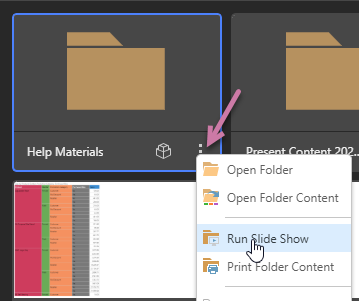
To run the slide show, use the right-click context menu of the relevant folder and choose Run Slide Show.
Slide Show interactions
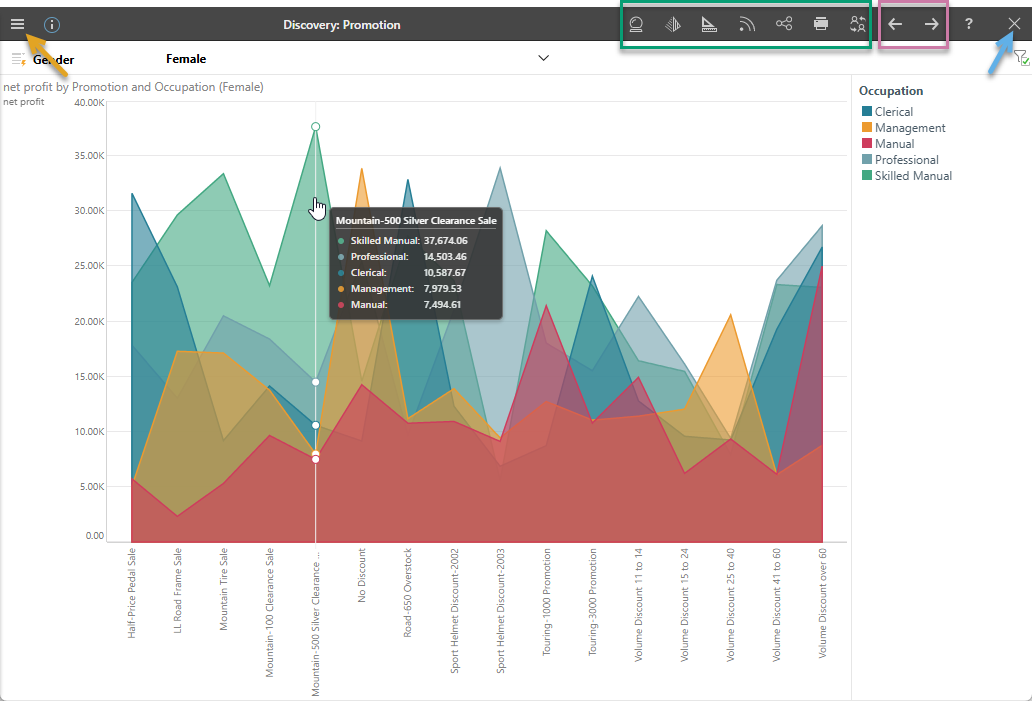
In slide show mode, the Viewer ribbon is presented at the top of the page, allowing users to:
- Interact with discoveries using the ribbon (green box below), the Hamburger menu (orange arrow), or directly on the canvas using context menus, slicers, and other interactive elements. For more information, see Discoveries in the Viewer.
- Cycle between the different reports sequentially using the arrows (purple box). Note: These arrows are only shown if the folder contains more than one discovery.
- Close the slide show and return to the Content Manager (blue arrow).